Friday, January 01, 2021
I’ve never been big on New Year’s celebrations and this year is certainly no exception. 2020 was frankly, an awful year. With the pandemic killing hundreds of thousands both in the US and around the world, civil and social injustice magnified in the US and an overall abysmal failure of leadership to address either, I found it difficult to find optimism in a year fraught with pain, fear and disorder.
 I struggled equally to write this post. However, at the risk of falling into the “positive toxicity” category, I find myself ending this tragic, overwhelmingly difficult year with a tremendous sense of gratitude.
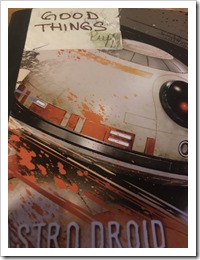
One of the practices I started early in the pandemic was a “Good Things” notebook. I know it may sound silly, but amidst so many bad things going on, I wanted to capture those little moments, events that were, well, good. Starting with an old notebook, I created a heading at the beginning of each week i.e. “Week of April 6”. As good things happened, no matter how small, I added an entry. For example, going on a long mountain bike ride with my son, publishing a paper at work that was well received, my family’s COVID tests coming back negative. Surprisingly, each week I racked up at least 5 good things and filled 23 pages with all the little good things that happened. This proved to be a useful little tool not only for taking inventory after a particularly brutal day of headlines, an exhausting day at work or yet another scare that maybe we were infected, but also to simply maintain some semblance of locus of control and focus on positivity amidst a world that literally seemed to be falling apart around me.
As a believer in the power of practicing gratitude, this is a new habit that I will continue in 2021. And while 2020 was nothing short of awful in so many ways, there are so many things that I am grateful for including opportunities that I would not have had under different circumstances. For example:
1. My family stayed safe and healthy amidst the largest pandemic the world has seen in over 100 years (for a fascinating, if not infuriating look at how the handling of COVID-19 mirrors that of the Spanish Influenza of 1918, I highly recommend this book).
Like most, we had our share of scares. But, at the risk of jinxing myself, I can say that the isolation, relentless masking, limiting socialization to very small groups and exercising outdoors has worked. We haven’t dined inside a restaurant or been in a movie theatre in over 300 days. I miss my live music. I miss sitting down for a nice meal at a restaurant. I miss the escape that only a dark, cool movie theatre can provide. But, in the big picture, these are all such miniscule sacrifices compared to what others have had to endure, lives that have been lost and the long-term impact that we will likely not fully understand for years. It’s hard not to feel an overwhelming sense of gratitude, almost to the point where it doesn’t make sense.
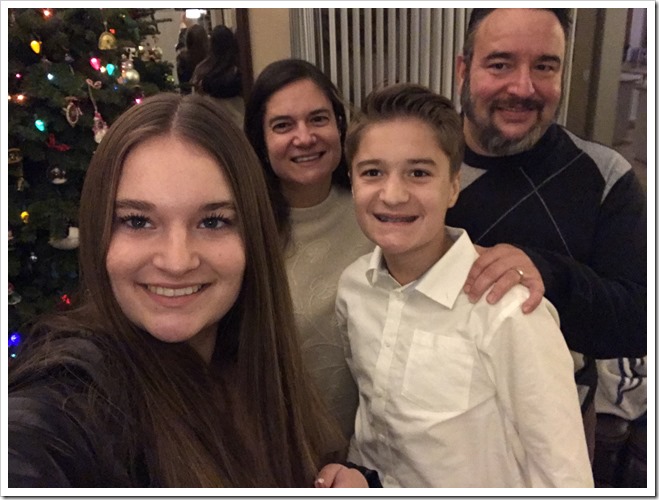
2. My parents moved safely from Texas to Phoenix.
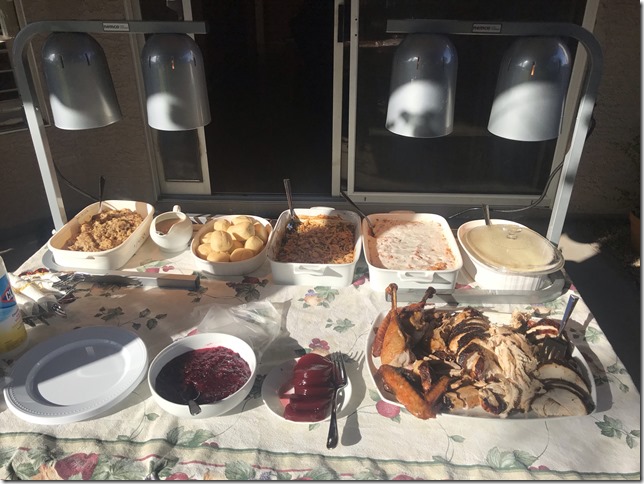
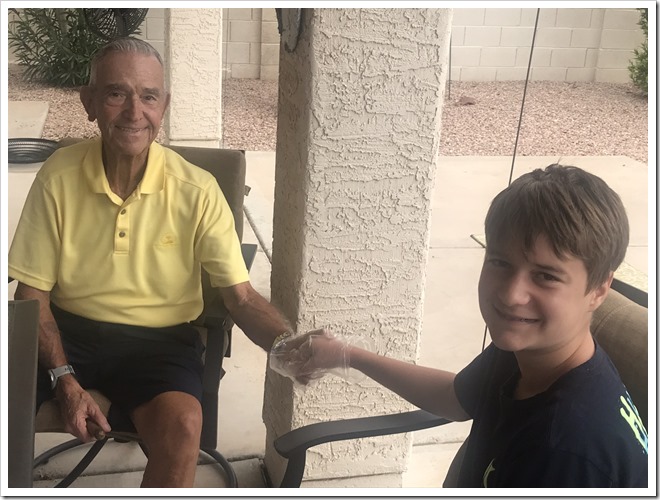
After nearly 35 years in Texas, we are so blessed that my parents made the move to Phoenix. Despite all the adversities you can imagine with listing, selling and buying a new home during the initial peak of the pandemic, they are now settled safe and sound in a retirement community that is only 20 minutes away from us. While the pandemic has made visits hard, we’ve found creative ways to spend time together outdoors and are now enjoying the wonderful fall, winter and spring that central Arizona has to offer. We were able to pull off a safe Thanksgiving outdoors and my Dad got his birthday wish to shake his grandson’s hand.
3. I had the luxury to work, and to do so effectively from home.
While I probably would not recommend joining a new organization right before a pandemic, hindsight is always 20/20 (wait, is that a pun?). After 5 years building tools and APIs for 3rd party Selling Partners on Amazon’s Retail Marketplace, I made the leap to a sister organization within the Consumer organization focused on maintaining customer trust and protecting our customers. Learning a new domain, driving impact within the new communication constraints that precluded face to face interaction was extremely difficult but despite these constraints I developed effective new relationships, invested in existing ones and was able to contribute to a new problem domain in a meaningful way that I’m proud of. I reviewed and provided feedback on over 200 documents, held nearly 60 office hours consultations and published what is probably the most exacting paper of my 20 year career to favorable reviews. I even got a trickle of code commits in before leaving for vacation :-)
But, all of this seems so small in the grand scheme of things. So many people have lost their jobs, or don’t have a choice but to put themselves in harms way every day just to make ends meet. They are the real heroes that remind me every day of just how privileged I am to have a job, and a thriving career with the ability work safely from home. I am so grateful for the support system that my employer, manager and management team has provided me and my colleagues and I hope that in some small way, I’ve done the same for others. This year stood out among the last nearly 6 years as one in which I felt a real sense of solidarity –all of us being in this together- and somehow, still making a massive impact in people’s lives while showing each other empathy.
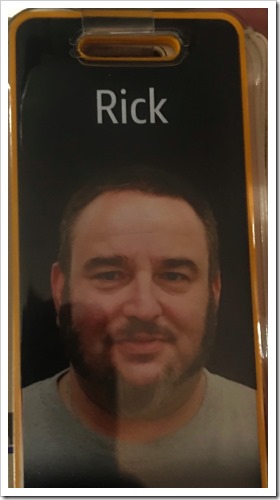
4. I was able to continue to serve the Lord and my church community.
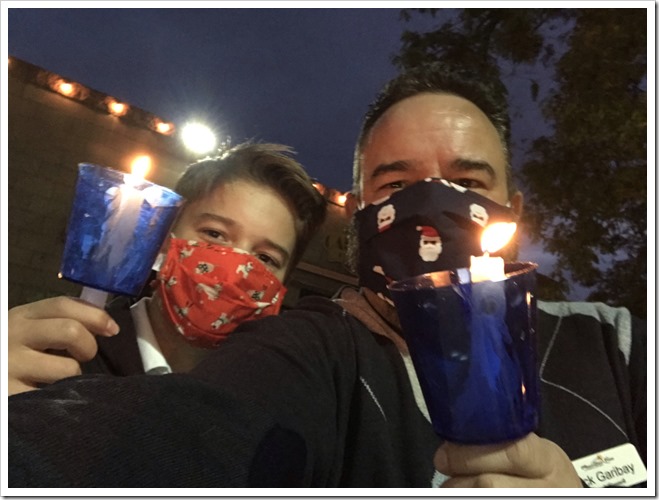
This was my first of a three year commitment to serve on the church council, a board of directors that oversees and advises church business. I’ve learned a lot this first year, and as with the rest of the world, this eclectic group of leaders were able to adapt to a world of Zoom and email as our primary collaboration method. Likewise, our services pivoted from in-person only worship with sermon recordings available for download to live streaming every service on our YouTube channel. We’ve come a long way in just 9 months thanks to a lot of experimentation and the hard work of the church staff. To this end, while I was not comfortable worshipping in person for the most part this year due to increased local community spread, I was able to continue my lector duties by submitting the week’s reading via video.
5. I picked up some new skills I never would have under different circumstances and finally got around to doing some things I’d thought and talked about but never executed because [insert lame excuse about how busy I always am].
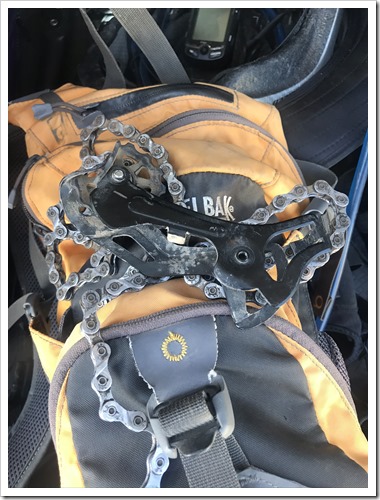
As an avid cyclist, from everything from mountain biking (my favorite) to road, commuting and everything in between, I’m commonly in and out of my local bike shop for maintenance, tune ups, etc. But this year, something really cool happened: cycling exploded with everyone looking for some respite from the confines of isolation to the point where bikes were on back order for months and the lead time for any kind of repair or maintenance, no matter how trivial was 14 to 28 days. That’s a long time without a bike! So, with necessity being the mother of invention, in addition to the usual tube replacements, this year I really upped my maintenance game. I replaced the shifter cable and derailleur hanger as well as the rear cassette on my Epic 29er, learned how to bleed my disk brakes.
I replaced the derailleur on my son’s mountain bike which somehow got smashed on a recent ride in Flagstaff and built up a used mountain bike for my best friend that was donated by a widow who wanted to give the bike a new life. BTW, he’s hopelessly hooked, as you can see on his YouTube channel. Please like and subscribe :-)
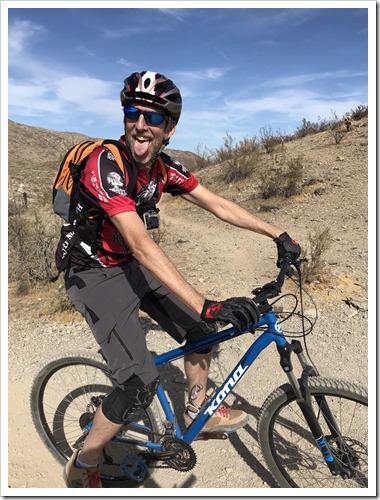
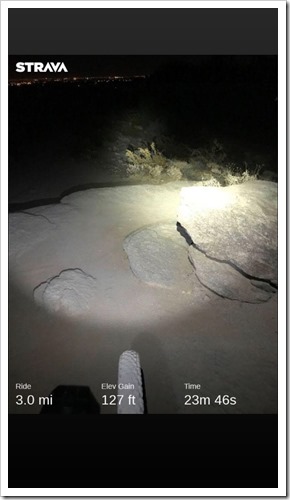
Speaking of cycling, I finally put the lighting together (including this awesome helmet light) I needed to try out night riding (really the only option for riding in the PHX summer heat) and I absolutely love it! It’s seriously like riding on the moon. Every trail, no matter how familiar or how many times I’ve ridden it is completely new again.
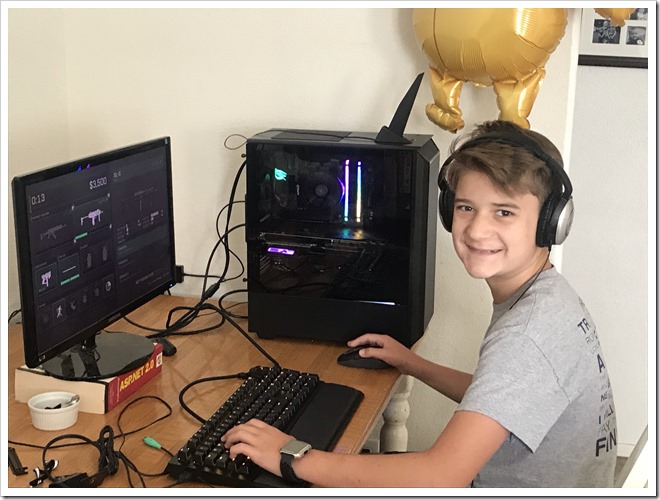
I built a gaming PC with my son which has successfully unlocked the world of awesome that is PC hardware and versatility compared to his console. This was the first time I’ve built a new box in over a decade. Surprisingly, not a ton has changed with the exception of GPUs being much more powerful (and, the most important part of the build these days), super fast M2 drives and much cooler cases. My 13 year old still marvels at the ping (latency) improvement playing Fortnite on the new PC vs. XBOX One!
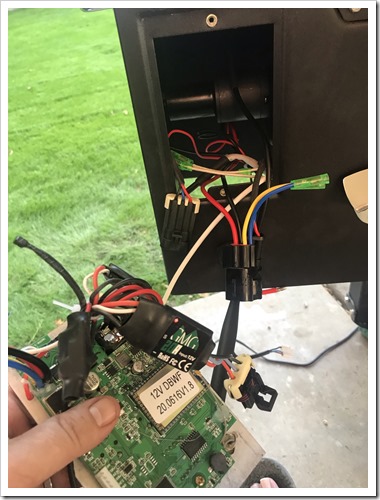
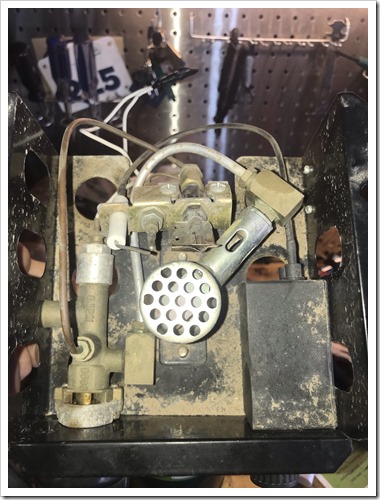
I also finally put up Italian Wedding Lights outside, learned how to repair a pair of propane heaters that had been hauled out by a neighbor for bulk trash pick up (a $400 value!) and even replaced the reclining motor on my otherwise beautiful leather sofa. I learned that pellet smokers are really nothing more than IoT devices that make delicious smoked meat.
Oh, and we finally took that RV trip I had been wanting to do all of my adult life. While I loved every minute of it (think Clark Griswold), we learned that we are sadly not an RV family (don’t let those smiles deceive you). But hey, now we know. And I will seriously probably do some solo camping or plan a buddy mountain bike trip in 2021.
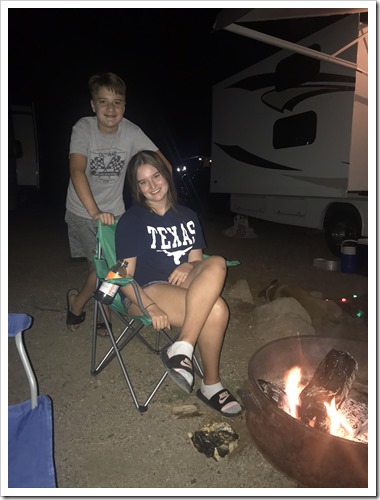
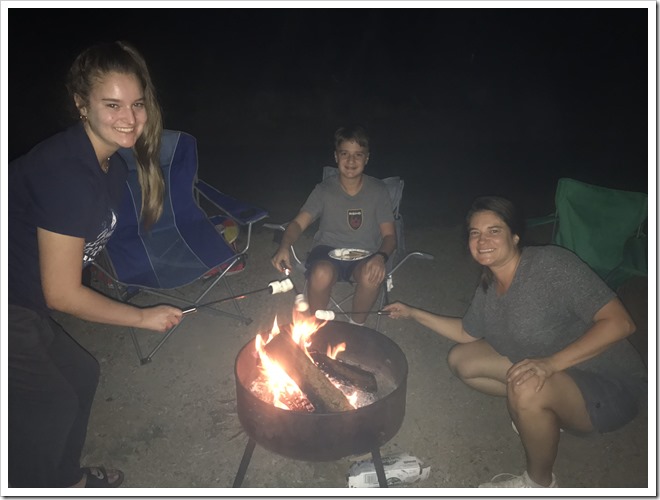
Despite 2020 being a rotten year, I think that I learned and grew this year, not in spite of, but directly as a result of all the adversity all around me. Reflecting on the year, writing down and sharing these experiences here have helped me to take inventory of just how lucky and blessed I am and for that, I am incredibly thankful.
As the hopes and dreams of a new year dawn, I resolve to find new ways to pay it forward. And though future strive and struggle will undoubtedly strike again, I hope I can look back on 2020- maybe even this post- as a reminder that there is always good that comes with the bad and so much for which to give thanks.
I wish you and yours a Happy New Year!
Monday, June 15, 2020
It’s been a while since I posted here. This is likely due to laziness coupled with the fact that since joining Amazon over 5 years ago, most of my writing has become internally facing. Historically, this blog has been technical in nature. A place to share my learnings with the community and talk about the technologies I’m passionate about. I’ve bent this rule once. On the topic of Type 1 Diabetes in order to raise awareness and promote the work of organizations that are working hard everyday to find a cure.
I’m going to bend that rule again today, right now to talk about my learnings as pertains to the words I’ve used in the context of technology and how this words may have been, and continue to be hurtful to others. Before I go much further, I want to be clear that my goal with this post is not just to do my part as “another white dude” to help myself feel better or demonstrate that I’m somehow doing my part. Instead, in the spirit of this blog, and it’s relationship to technology, I want to share my personal struggles, growth and learnings over the last two weeks and encourage others to dig deep and consider doing the same.
“I feel like I’ve heard a lot of these from you.”
Last week, I got an instant message from a colleague I have worked closely with, respect and consider a friend. It shared a link to an internal wiki with a string of words: “I feel like I’ve heard a lot of these from you.” Anxiously, I clicked on the link to reveal a page created by one of our device UX teams entitled “Alternative Phrases”. It presented a table of terms commonly used in tech, a reference to the etymology and or article that explains how and why the term is offensive to some and a column including suggested alternatives.
Some of the terms in the table were unsurprisingly controversial: “Black List, White List”, “Master, Slave”. Terms I, like many others have used to describe how we might filter access to features or experiments or how to configure peripherals on a motherboard. For example, to allow traffic to a resource, we might build a “white list” to determine who can see the feature by account and consider anyone else on the “Black List”. In hardware architectures, when you would share a channel say for a hard drive and a DVD player, the “Master” device, say the hard drive would control when the “Slave” device, the DVD player could use the channel.
Within a minute, I replied back to my friend: “Wow. Yeah, need to do better.” To which he replied “Not trying to call you out or anything… I didn’t know a lot of them either.”
But that was it. I knew this was a moment and the task I had left to put a bow on my week would need to wait. I sat by myself in thought. I felt a mix of guilt and defensiveness, maybe some denial.
To be honest, I’d never quite thought about these terms as they have been so pervasive in software and computing. However, I need not think too hard about why “Master/Slave” would be insulting or offensive to many Blacks or African Americans who need only go back to their grandparents and great grandparent’s generation to realize the sting of this terrible scourge on our country’s history.
Regardless of how obviously or non-obviously controversial the terms are, the reality, and what I’ve had to reflect on and admit is that I used these terms anyway. Why? Because I never really thought much about them. I can make excuses that they were so commonly used and “didn’t mean any harm” but that’s no excuse. Words Matter. I’ll come back to this shortly.
“Whatever” you might be thinking. These are obvious. You sound like “just another white guy” [1] trying to join the conversation.
Here’s where it got hard, awkward and uncomfortable. While given the luxury of hindsight, these terms now seem like “duh”, there were a few other terms that really stood out to me: “Brown Bags”, “Tribal Knowledge” and, the one that really strung “Broken Window”. I struggled with each of these reflecting on my own mental model for these phrases.
- “Brown Bag” to me simply referred to the sack lunches I took to school in middle school and high school once I’d outgrown my lunchbox. I had no idea that it referred to being “brown bagged” wherein servants/butlers would gauge a person’s whiteness by comparing their skin tone with a brown bag before determining if they could enter a private residence.
- “Tribal Knowledge” is a phrase I’ve used countlessly in coaching teams to embrace documentation to avoid depending on their empirical knowledge and help them scale on particularly complex or esoteric topics. Also, as I get older, my “Tribal Knowledge” has been overwritten multiple times and docs, notes are key to make up form my middle aged brain :-)
- “Broken Window” is a term I use so often that I even wrote an internal blog post just this February encouraging teams to catalog their technical debt so that they can reason about and pay it down in future sprints.
Reflection
Already, that internal wiki page had done its job. It made me stop and think. It made me uncomfortable.
I made a pact with myself right then and there that I would do better and embrace the alternative phrasing wherever possible and speak up when I heard them from others.
But, as importantly, I recognized that there was a related and equally important conversation to have. As I reflected on the suggested alternatives to “Broken Window” I was OK with all of them except for one: “Bug”. This was another moment where I recognized that if I was going to be true to myself, I would need to have this conversation.
First, a bit of background. In their excellent book “The Pragmatic Programmer: From Journeyman to Master” first published in 1999, the authors quote a Quarry worker's creed:
We who cut mere stones must always be envisioning cathedrals.
That preface had an impact on me before even getting into the wonderful book that really shaped my career. That quote was a reminder that my profession matters and the decisions I make, often encoded and interpreted by compilers matter. Having pride in your work maters. It also spoke to ownership and responsibility of me as a craftsman. The book goes deeper into the importance of thinking about trade-offs and taking ownership for those trade-offs and how not doing so leads to the accretion of technical debt that over time can be debilitating for a team to deliver customer value early and often. This can all be summarized with the following tip: “Don’t Live with Broken Windows: Fix bad designs, wrong decisions, and poor code when you see them.”
Taking it one step further, I encouraged teams to catalog these decisions as broken windows including teams at Amazon and clients I worked with previous to Amazon. In fact, I led the Engineering Excellence program at Neudesic and built guidance for field engineers including guidance docs and posters and mouse pads that summarize the guidance, all of which used or referred to the concept of broken windows and technical debt.
Words Matter: A Simple Rule
Now, I knew that “Broken Window” theory was rooted in criminology. This is described in a great interview here with the authors of the book. In short, the “Broken Windows Theory” is rooted in an article published in 1982 by social scientists which was rooted in an experiment done in 1969 by Philip Zimbardo, a Stanford psychologist. Zimbard performed an experiment by which he placed a car in the Bronx, NY and another in a suburb in Palo Alto, CA. The car in the Bronx was damaged within minutes of being “abandoned” and within 24 hours was dismantled, with anything of value removed/stolen and the remains damaged and destroyed beyond repair. Conversely, the same car in Palo Alto sat untouched for a week until Zimbardo smashed a window with a sledgehammer. Soon thereafter, the car followed a similar fate as the one in the Bronx.
Zimbardo observed that a majority of the adult "vandals" in both cases were primarily well dressed, Caucasian, clean-cut and seemingly respectable individuals. It is believed that, in a neighborhood such as the Bronx where the history of abandoned property and theft are more prevalent, vandalism occurs much more quickly as the community generally seems apathetic. Similar events can occur in any civilized community when communal barriers—the sense of mutual regard and obligations of civility—are lowered by actions that suggest apathy.
This seemed useful enough. Teams that don’t demonstrate strong ownership, value clean code, refactoring become apathetic which leads to technical debt.
However, what I never realized was that the Broken Window Theory had unintended consequences when it was was more broadly applied in New York City and other cities. As the theory went, if you want to prevent large crimes from happening like burglary and murder, you have stop the smaller, more petty crimes before they take root. The result is a culture of NYPD “sweating the small stuff” like assuming that where there is graffiti, there is the risk of larger crimes, or smoking/possessing marijuana publicly sufficient evidence for stop and frisk, jail time or worse, murder. One tragic example is the story of Eric Gardner who was killed by police in 2014 after being confronted for selling lose cigarettes on the street.
So, it turns out that this theory that shaped policing doctrine for 30+ years has resulted in unnecessary harassment, jail time for no cause or petty crime that has at times ultimately led to the death of otherwise innocent Americans in areas that are disproportionally (>52%) non-white. It turns out, this term is not just pervasive in my little niche of 1st world software design problems. It is part of the lexicon of many others that have been disproportionately and often unfairly affected by it.
This learning is enough for me to be mindful of this phrase and stop using it in the context of engineering and technical debt. It’s not because I’ve learned that it might be politically incorrect. It’s because it’s hurt people and because other’s find it offensive as result. The extent by which I defend it or keep using it doesn’t make me smart, well-read or articulate. Now that I know that people find it offensive, and have taken the time to understand why, it’s a simple rule, a simple choice: If the actions you take or the words you use are hurtful to others, stop.
If the actions you take or the words you use are hurtful to others, stop.
Have the Important Conversations & Let Go
Sometimes this can be easier said than done because ego gets in the way. That may not make you a bad person or a racist, but it won’t help you or your community either. You see, I had a deep relationship with this particular term and now it was time to give it up.
However, in so doing so, I felt it was critical to have the conversation with the wiki author and share my concern with the term “bug”. It was uncomfortable for a number of reasons not the least of which was the risk of showing insensitivity by being overly picky or “in the weeds”. I started by thanking her for putting together this resource, sharing my own journey and learnings in processing it. Getting to the point in my email, I shared why I disagreed with the term “bug” as alternate phrasing and suggested she drop the term and use “trade-off” as well.
You know what happened? She replied within an hour, late on a Friday afternoon. Thanked me for my feedback and let me know she’d updated the wiki with my suggestion. But that’s NOT the important part. What’s important is that the conversation happened. Two Amazonians had a conversation rooted in facts, data that left the resource in a more valuable state. We both showed empathy, respect and accepted that we both learned. It was a great way to end a very heavy week.
If we are going to affect the change and healing that is so clearly desperately required, we must take the time to reflect, understand that words matter, have the tough conversations and then let go. I think of this as an important cycle in healing that starts with listening and learning, deep reflection and then doing something different. And, as you can see from my story, all of this is possible while still remaining technically accurate.
[1] I was born in Mexico City. My paternal grandfather was Hispanic. My maternal grandparents are German and Hungarian Jews. While I identify in many ways as Mexican culturally, I am what you call a “Mestizo” and most people would relate to me as simply White.
Monday, February 18, 2019
Hands on leader, developer, architect specializing in the design and delivery of distributed systems in lean, agile environments with an emphasis in continuous improvement across people, process and technology. Speaker and published author with 18 years' experience leading the delivery of large and/or complex, high-impact distributed solutions in Retail, Intelligent Transportation, and Gaming & Hospitality.
I'm currently a Principal Engineer at Amazon, within the North America Consumer organization leading our global listings strategy that enable bulk and non-bulk listing experiences for our WW Selling Partners via apps, devices and APIs. 
At Amazon, I start with our customers and work backwards to deliver simple and intuitive experiences via web, mobile, devices and APIs that enable our Selling Partners to contribute to earth's largest selection on Amazon Online Stores and Alexa devices WW. I've led and/or contributed to various toolchains on Amazon Seller Central and Amazon MWS including Complete Your Drafts, several front-end and back-end features, enhancements for the MWS Feed and Report APIs and dozens of internal/confidential distributed systems projects constrained by scale, latency, and throughput requirements including streaming, microservices, and various AWS capabilities.
Prior to Amazon, I was VP and Distinguished Engineer at Neudesic, responsible for leading 8 practice areas within the Development Platform Group and owned the Engineering Excellence program for over 400 field engineers. I also started the company's IoT practice, and was responsible for the architecture, design and delivery of dozens of large and complex projects including the first fully integrated real-time messaging system for Electronic Gaming Machines, Point-of-Sale, Reservations and Box Office for properties in Las Vegas and New York; the first distributed screening system for the US DOT and the expansion of the first automated parking system from San Francisco to Phoenix including 1,700 street meters and sensors integrated with Microsoft Azure; and was the architect and lead for PrePass Gates, the first autonomous gate operations offering for the commercial transportation industry. I also partnered with Microsoft and Neudesic Product leadership to design, implement, document and deliver the the first Neuron ESB Adapter for Microsoft Azure Service Bus enabling hybrid messaging via queues and topics within the product.
Before Neudesic, I was an Architect at ESS where I led integration efforts within the Essential Suite product line via web services and environmental sensors and devices. I was the technical lead at DriveTime where I was the architect for the company's' first service-oriented mobile workflow solution for vehicle inbounding. I contributed to and led several projects at JP Morgan Chase within the Credit Card BI and Home and Auto Collections teams including the first collection tools portal built on Microsoft .NET in 2002.
I'm a passionate community advocate and former 9x Microsoft MVP (2006-2015). Presentations include talks at Channel9, MSDN AzureConf, Visual Studio Live!, That Conference! and Desert Code Camp, as well as published works including co-author of AppFabric Cookbook, Microsoft whitepapers, frequent contributions to CODE Magazine and my personal blog: http://rickgaribay.net.
Passions: System architecture, distributed systems design, object and component oriented design, microservices, domain-driven-development, agile, lean, teaching, mentoring, speaking, writing.
Saturday, April 28, 2018
TL;DR; If you’re looking for the “Download photos and videos” option on the standard File Explorer shell, stop. You want “C:\Program Files (x86)\Common Files\Apple\Internet Services\ShellStreamsShortcut.exe” which will land you in an odd looking shell that seems to wrap the standard file explorer which has the option to download and upload.
I recently started the process of consolidating all of my family’s iTunes/AppStore and iCloud accounts to take advantage of iOS Family Sharing (and because managing 3 different AppStore/iTunes accounts and paying for 3 different iCloud subscriptions is just dumb).
Family Sharing allows you to manage all of your Apple devices within your household such that content is available on all devices but partitioned by individual user.
Once you set up Family Sharing, you get other nice benefits like shared calendar, storage and location, etc. but the biggest benefit is the ability to centrally manage app and content purchases through a single iTunes/AppStore account. My kids can browse iTunes or the App Store for stuff and request approval before downloading (even for free stuff). Upon requesting approval, my wife and I get a request on our devices and we can quickly approve or deny with a single click thanks to Touch ID.
My goal was to reduce the number of accounts to exactly 1 and the first problem I hit was migrating photos and videos strewn across 3 different iCloud accounts. Unfortunately, Apple does not provide the ability to migrate content from one iCloud account to another and while there appear to be some tools out there, malware is always a concern so the only option left is to simply download the bytes from the old accounts to to my local Windows 10 box and then upload them to the existing account before I shut the other two accounts off.
As much as my family loves our iPhone and iPads, we are a hybrid home as PCs are still my preferred platform (Windows 10 has gotten really, really good!) and it turns out that the web interface for iCloud works differently on Mac and PC and thus, despite this nice walkthrough on OSX Daily, there does not seem to be a way to download all items from Chrome or Edge on a PC. Instead, I followed the other helpful tips on the same blog and downloaded the iCloud desktop app which pretty much syncs your stuff to your PC in the same way that DropBox or OneDrive do:
After downloading the iCloud desktop app, you can choose what features you want to keep in sync:
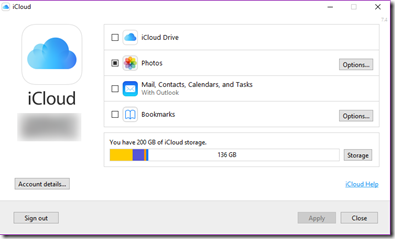
Clicking on Options… next to photos let’s you specify the path you want to use as your download target:
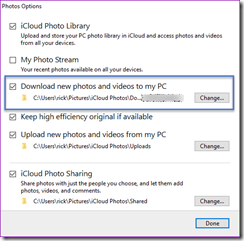
From there, it’s not clear what’s next. After applying the settings nothing really seems to happen. Fortunately, per the helpful walk through I mentioned earlier it provides the following steps to complete the process:
- After iCloud for Windows has been installed, locate and choose “iCloud Photos” from the Windows File Explorer
- Choose “Download photos and videos” in the file explorer navigation bar
While these instructions are accurate, as I point out in the comments there are two ways you can infer the first step. The first, and what I did initially is to simply go to C:\Users\rick\Pictures\iCloud Photos\Downloads within File Explorer. However, if you do so, you will not see the “Download photos and videos” option because this is not an option in the ribbon. Instead, you must use the '”iCloud Photos”” shortcut which actually has a path of “C:\Program Files (x86)\Common Files\Apple\Internet Services\ShellStreamsShortcut.exe”.
This path will land you in an odd looking shell that seems to wrap the standard File Explorer which has the option to download and upload:
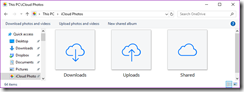
Once I clicked “Download photos and videos” I was immediately presented with options to download all 5,196 photos and 262 videos dating back to 2013.
There’s no feedback other than the files being written to disk, but the process seems to be clipping along at about 15Mbps with bursts up to 50Mbps. So with 2.5 GB should be done in about 20 minutes?
From there, I’m hoping I can upload OK though I’m a bit concerned with timeouts so perhaps I’ll need to chunk. In lieu of providing an easier way to do this, it would be great if Apple at least offered standard protocols like FTP or WebDav or even better provided developer access to the APIs expose by cloud capability provider(s) that backs it.
Sunday, December 11, 2016
On November 19th, I joined nearly 10,000 cyclists in Tucson, AZ for the 33rd annual Tour de Tucson. Each cyclist participated in the distance of their choice, ranging from 27, 40, 55, 75 and 100 mile rides. The distance chosen by each cyclist is as varied as the reason they ride. Some ride for health, others to compete and many ride for a cause that is near to their hearts.
I ride for Sarah. _thumb.jpg "WP_20161119_11_28_45_Rich_LI (2)")
So much has changed in just over two years since Sarah’s diagnosis on October 20th, 2014. Sarah is growing into a beautiful young girl, and is already halfway through 6th grade. Now 11, Sarah is just like all of her friends. She’s a great student (currently straight A’s) into music, art, and continues to compete in Traditional Irish Dance. In fact, the same weekend of El Tour, she was in San Francisco competing in Oireachtas (regionals). Sarah worked hard all year to qualify and finished 47 out of 80 girls from around the country in her solo dance and placed 12th in her Céilí (group) dance taking home a medal for her Bracken School of Irish Dance.
Needless to say, Sarah has not let Type 1 Diabetes slow her down! Despite having to constantly monitor her blood glucose levels and administer insulin throughout the day, Sarah is an amazing girl who has shown me a strength and resilience that inspired me to join the JDRF cycling team in 2015 as a rider and this year as a coach.
This spring I studied for and completed the requirements for obtaining my USA Cycling Level 3 coaching license and spent 20 weeks training with and supporting fellow team members who are fully committed to finding a cure for T1D. My team included athletes with T1D and friends and family of people with T1D. In addition to riding 20, 30, 40, 50+ miles almost every weekend, each team member also committed to a fundraising target and raising awareness at El Tour by donning our official JDRF team ride jerseys (the picture included is of the 40 mile team I led in Tucson right before the start).
This has been an amazing role that has enabled me to apply my community evangelism talents with my passion for cycling to have a greater impact in the research community. The road to the event and ride day itself was an incredible experience and while Sarah could not be there with me physically, she was in my heart as I trained, coached and rode with the JDRF cycling team for every pedal stroke and mile until we crossed the finish line. Joined by my Mom and Ricky (now 9), it was a beautiful day of fellowship, camaraderie and celebration with each athlete achieving their personal distance targets beating 20 mph head winds and telling their T1D story along the way.
Simply put, this ride and this experience would not have been possible without your support. Thanks to your generous contributions I was able to exceed my fundraising goal by 184%, raising a total of $4,600 towards $56,080 raised by my Desert Southwest Chapter for a total of $675,002 raised across all participating chapters for Type 1 Diabetes research!
 These numbers matter. I am more confident than ever that every dollar we’ve raised will take us one step closer to finding a cure for Sarah and I believe that JDRF is our best hope in getting there. Inspiring this confidence is JDRF’s influence, funding and impact is the recent breakthrough announced on September 28th with the FDA’s approval of the first ever artificial pancreas. This closed loop system was funded largely by JDRF and is the firs
 t ever approved to automate the dosing of insulin to manage and regulate insulin levels by enabling a continuous glucose monitor (CGM) and an insulin pump (see images left and right respectively) to communicate with each other and make decisions based on current blood glucose levels.
Sarah has been wearing a CGM (which reports her blood sugar level every 5 minutes via a sensor that is inserted just under her skin) and an insulin pump (which inserts a tiny needle into her skin that serves as a port for insulin delivery) every day of her life for the last year and a half. While this technology is AMAZING, the two devices do not (yet) talk to each other. She must vigilantly monitor her blood sugars at all times day and night and monitor her insulin levels to maintain a healthy blood glucose level. In addition, Sarah must “announce” her meals to her insulin pump so that it can calculate how much insulin to give her (X grams of carbs = X units of insulin). Getting this algorithm right several times a day is critical…Not enough insulin means unhealthy high blood glucose which can lead to long-term health complications, too much insulin (very easy to do!) can be deadly.
This is a paradox and daily battle that every person with T1D must live with until there is a cure. Thanks to JDRF, which has invested more than $116 million in artificial pancreas research, we are now one step closer to a single device that takes care of the pancreatic functions we so easily take for granted.
I believe that the approval of the artificial pancreas by the FDA will open the floodgates of innovation and it is my biggest hope that by the time Sarah starts college, an AP system that is virtually hands-off will be a reality. To make this happen, I will continue to partner with JDRF across their research portfolio and work tirelessly to raise awareness, advocacy and funding as we continue to fight for Sarah and the 1.25M people in America alone to one day make life with type one feel more like life with type none.
None of this would be possible without your generosity and I thank you from the bottom of my heart for your kindness and generosity. Thank you!
Rick
PS The training calendar for next year’s ride is starts in January. I am currently looking at either doing the Tour de Tucson in Arizona again or a new ride in Loveland, CO that was just announced a couple of weeks ago. Follow me on twitter for the latest news and thank you again for your support!
Saturday, September 03, 2016
At Amazon, we focus on our customers and work backwards. One of the common tools we use to do this when coming up with a new feature or product idea is what we call a forward looking press release. Often abbreviated as “PR FAQ”, the forward looking press release sets the vision for the product or feature based on the customer benefits and business outcomes achieved following the launch. While it may seem a little strange or counterintuitive to write what happened before it’s actually happened, I’ve found it to be a great tool to think about the impact an idea can have, how customers will react (customer obsession) as well as how to define and measure its success (right a lot). The PR FAQ typically includes “audacious goals” (think big) an FAQ that includes a list of questions that provide additional clarity on strategy, execution and metrics (John Rossman has a good explanation of this mechanism in his book “The Amazon Way” which is a great and fairly accurate read: http://bit.ly/TheAmazonWayBook).
I recently partnered with Kevin Freeland, founder of Body Focus Fitness & Performance and JDRF to plan a fundraiser in October and thought I would dog food this approach outside of work to try to sell the idea and get two different organizations aligned and committed to a shared goal. I’ll spare you the FAQs, but hope I can count on your support for this fun event on October 22nd at the Body Focus Fitness & Performance studio in Tempe. You can learn more about the event and register here: http://bit.ly/hammer-out-type-1
+++
October 22, 2016 - Tempe AZ
On Saturday, October 22nd, JDRF teamed up with local fitness icon Kevin Freeland of Body Focus Fitness & Performance for a chance to take a swing at Type 1 Diabetes.
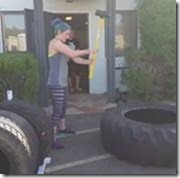 Over 80 members of the local Phoenix community participated in a fun filled morning that provided each participant with an opportunity to swing a large sledgehammer against massive tractor tires to determine who could achieve the most swings within a 5-minute period. Eager participants began lining up outside of the Body Focus Fitness Studio in Tempe at 7:50 AM for the first of 8 time slots running from 8 AM through noon. Categories for wielding a sledgehammer of various sizes included men’s (16 lbs.), women’s (12 lbs.), youth (5 lbs.) and male/female tandem teams with prizes including fitness assessments (a $30 value) a full private workout ($60 value) an Amazon Fire tablet and two Amazon Fire TV sticks.
"This is a great opportunity to partner with a local fitness organization that has a history of not only developing some of the valley's strongest athletes but also has a track record of consistently giving back to the local Phoenix metro community" said Peter Ferry, JDRF Development Manager, Desert Southwest Chapter. Prior to this year’s event, Body Focus Fitness and Performance hosted “Hammer out Hunger” wherein the entry fee was a frozen turkey to benefit Andre House, a local ministry to the homeless and poor populations of the Phoenix area. “Building on the success of previous fundraising events, this is an opportunity to both provide awareness and raise funds for critical research that aims to well, hammer out Type 1 and I am honored to be a part of it” said Kevin Freeland, founder of the fitness studio in Tempe. The event met and exceeded expectations, raising nearly $1,900 for the annual JDRF Ride to Cure Diabetes as part of the annual Tour de Tucson on November 19 which draws over 10,000 cyclists from around the country. This event is JDRF’s second largest fundraising effort behind the annual One Walk held in the spring.
Did you know Type 1 Diabetes:
1. Is an autoimmune disease in which a person's pancreas stops producing insulin – a hormone essential to turning food into energy.
2. Affects 1.25M Americans living with T1D including about 200,000 youth (less than 20 years old) and over a million adults (20 years old and older)
3. Strikes both children and adults suddenly and is unrelated to diet and lifestyle.
4. Requires constant carbohydrate counting, blood-glucose testing and lifelong dependence on injected insulin.
5. Is growing, with 40,000 people diagnosed each year in the U.S. alone and 5 million people in the U.S. are expected to have T1D by 2050, including nearly 600,000 youth.
Founded in 2005, Body Focus Fitness & Performance is an independent personal training facility specializing in fitness, performance and corrective exercise programs. Over the last 11 years, Kevin has trained athletes and aspiring athletes of all levels including elite triathletes, dancers and cyclists, football players training for the NFL combine, collegiate basketball, football, baseball and track athletes and entire high school football teams to busy working professionals trying to get a couple of highly effective work outs in a week or moms returning from maternity leave. As the creator of the Functional Cross Training (FxT) System, Kevin applies a combination of techniques for core conditioning with a focus on flexibility, mobility, strength and power. Using non-traditional tools you are unlikely to find in commercial gyms like sledgehammers, chains, ropes, Russian Kettlebells and sleds, Kevin takes an approach that is as unique as the athletes he’s working with. In addition, as a Medical Exercise Specialist, Kevin brings an educational approach to training. Per Rick Garibay, a long-time client and co-organizer of the event whose daughter was diagnosed with Type 1 almost two years ago to the day and has also trained under Kevin: “Kevin takes a highly individualized approach to training and understands that there’s both an art and science to managing blood glucose levels during periods of intense physical activity, both in and out of the studio.” Rick goes on to say “You aren’t going to feel uncomfortable pulling out your test strips or treating a sudden low in his studio, whether you’re training one-on-one or in a group setting”.
Based on the success of this year’s event, the date has been set for the 2017 Hammer Out Type 1 Diabetes event which will be held on Saturday, October 21st, 2017. The goal of next year’s event is to increase participation and corresponding funding by 50% with a goal of raising $2,500 and becoming an official jersey sponsor for the 2017 Ride to Cure Diabetes.
+++
- Help me make this press release a reality and register here: http://bit.ly/hammer-out-type-1
- Can’t make the event, but want to support my ride & fundraising goals. Please donate here: bit.ly/jdrf2016donate
- Want to join our team of JDRF riders passionate about cycling and finding a cure for Type 1 Diabetes? Join us: bit.ly/iride4sarah
Saturday, June 11, 2016
I joined JDRF AZ Riders last year for the Tour de Tucson where I rode 55 miles for my daughter Sarah. It was an amazing experience in which I got a chance to get to know this awesome community of cyclists focusing their energy and love for cycling on one thing: finding a cure for Type 1 Diabetes. Together, the Desert Southwest Chapter, led by the JDRF AZ Riders team raised over $57,000 towards $880K to help find a cure for Type 1 Diabetes in 2015!
In getting to know the coaches for the Southwest Chapter, PK Steffan and Scott Pahnke, we saw an opportunity to provide more ride options and locations as the JDRF Southwest chapter continues to grow. With over 60 JDRF AZ Riders across the Phoenix Metroplex and Tucson, nearly 33% are in the central/east valley, and with me living in Ahwatukee and working in Tempe, focusing on adding more ride options in central/east Phoenix made a lot of sense. Having obtained my USA Cycling Level I Coaching license, attending safety training and obtaining coaching insurance, I am thrilled to share that I am now an official JDRF cycling coach!
I am grateful for the trust that JDRF, PK and Scott have placed in me in providing the opportunity to combine my passion for cycling with raising awareness and helping to find a cure for T1D. This is a privilege that I take very seriously and I am very much looking forward to supporting and growing our community of riders as we train and get stronger for the upcoming Ride to Cure Type 1 Diabetes at the 2016 Tour de Tucson on November 20th.
I Ride for Sarah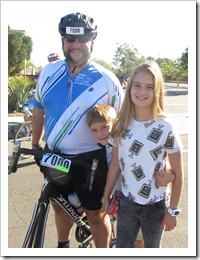
Sarah was diagnosed with Type 1 in October 20th, 2014. One September afternoon while my wife was taking Sarah to a routine dance practice (my daughter is a competitive traditional Irish dancer for the Bracken School of Irish Dance) they were T-boned by a big white van. The car was totaled but fortunately both where OK. A doctor follow up the next day revealed abnormal weight loss since her last birthday check up in May and a family vacation gave us the proximity to notice extreme thirst and frequent bathroom visits. The accident was a blessing in disguise as it gave us initial awareness there might be something off, without which the diagnosis could have been much more tragic. As a I discuss here, the road has not been easy but Sarah is an amazing girl who has shown me a strength and resilience that has inspired me to apply my technical and community talents coupled with my passion for cycling for the most important cause I have ever been engaged with in my life.
We need YOU!
While I have over a decade of experience working within the technical/development community, this is the greatest, most important cause I have ever been involved in. As with any community, we can only be successful if we continue to grow and with ever new rider that joins our team, we are raising awareness and moving one step closer to a world without finger pricks and needles. Whether you are a seasoned veteran cyclist or are brand new and want to join an amazing community of athletes that ride, train and have fun together and most importantly have each other’s back to ensure that every rider crosses the finish line in November, then the JDRF AZ Riders team is the team for you!
We publish a training calendar on the team website (http://bit.ly/jdrfazridersweb) as well as events on our Facebook page (yes, I have finally joined Facebook specifically for this new role, so you KNOW my heart is in it!). There are several options for riding both in Phoenix and Tucson with the option to ride with the north/west or central/east valley groups. Our goal is to provide you with flexible locations that are most convenient for you and ensure that there is always a ride available every weekend as well as alternating between Saturday and Sunday rides.
On that note, I will be hosting our first official JDRF central/east valley training ride tomorrow at 6:30 AM at the 40th Street & Pecos Park & Ride. This will be a relatively flat 22 mile ride (we can do less and accommodate all levels) throughout the beautiful Ahwatukee area including the Wild Horse Pass Resort which sees very little traffic at this hour (see route map: 22.5 miles Pecos and Casino Run).
- What: JDRF AZ Riders Central/East Valley Training Ride
- When: Sunday, June 12th, 2016 , wheels down at 6:30 AM
- Where: 40th Street & Pecos Park & Ride
- Route Map: http://www.strava.com/routes/5015203
- Contact: Please let me know if you can make it or if you have any questions: rickgaribay AT hotmail DOT com (email) | http://twitter.com/rickggaribay (twitter)
If you want to come out and ride a couple of times before signing up, that’s fine too! If you are already planning on riding in the Tour de Tucson and are looking for a team and an amazing opportunity to raise funds and awareness for a great cause, please join us! Register here: http://bit.ly/jdrf2016register
If you can’t ride, but would like to support our cause, please consider sponsoring me as I ride as a JDRF Coach this year. Last year I exceeded my goal by $200 raising $2,200 and would love to hit $2,500 this year. As of this writing, I have $2,400 more to go between now and November so every donation counts! Donate here: http://bit.ly/jdrf2016donate
Saturday, April 30, 2016
 Over 2MM Sellers in 10 countries (and growing) depend on the Amazon Marketplace Listings Platform to list their products for sale on Amazon.com to more than 200M customers (and growing) around the world.
Located in Tempe, AZ, my team provides APIs that manage the ingest of millions of listing requests per day in a horizontally scalable, secure and durable manner. We also provide asynchronous orchestration for dozens of internal Amazon Partners that rely on our platform to compose work on behalf of our Sellers ensuring that the right data is routed to the right Partner at the right time.
In addition, we serve internal tenants that make up some of the flagship Amazon brands you know and love such as Kindle, Audible, Amazon Fresh, and Zappos.
Together with our Sellers, internal tenants and Amazon Partners, we power the Amazon flywheel driving earth’s largest selection, lowest prices and availability. Over 55% of Amazon units sold flow through our platform and our job doesn’t end there. From exposing APIs that help our Sellers list, manage and fulfill their inventory to serving the secure ingest and workflow needs of various teams across the Amazon ecosystem, our mission is to provide the most innovative, scalable, and reliable systems in the world._thumb_1.jpg "WP_20160427_18_22_41_Rich (003)")
We’re looking for Software Development Engineers (SDEs) with at least 5 years of software development experience across the software development lifecycle. If you are fanatical about your customers and an owner that is passionate about distributed computing at true cloud scale, please read on.
At Amazon, we own our customer experience which starts with every line of code you write. Building on AWS services you may already be familiar with, you will start with the customer and work backwards to design and deliver innovative new features that make listing on Amazon as frictionless for our Sellers as possible. Joining a team that upon hitting sprint goals, reaches for even higher velocity and greater customer impact, you will collaborate with peers to maintain a high bar on engineering excellence ensuring that your code and tests meet your team’s definition of done. Relentlessly focused on scale and continuous improvement, you will consider the cost and trade-offs of implementing one feature over another and commit every 3 weeks to delivering on shared goals while releasing new software to Production several times a week/day.
At Amazon, we also own our team’s operations. As a member of our team, you will focus on the health of your platform, APIs and components. Working with state-of-the-art monitoring infrastructure, you’ll focus on ensuring the platform is humming along by adopting an ambient operational mindset, challenging anomalies by diving deep and when there is a problem, you’ll be a member of rotation of first responders responsible for mitigating customer impact within minutes and identifying root cause and proposing long-term remediation for eradicating recurring root causes.
At Amazon, we are:
- Entrepreneurial –We build solutions for all Sellers, regardless of size.
- Innovative – Our problem space evolves every day due to scale, new categories and new geographies. There is no playbook for a Marketplace of this size, so innovation and creativity are a must.
- Passionate – We are passionate about our customers, both Sellers and Buyers. Everyone’s an owner at Amazon, and our team is no exception. Our business is growing fast and the pace is even faster.
- Leaders – We recognize the desire for people to lead, whether it is the development of a new feature or ownership of a new category. We invest in our team members, providing challenging roles with significant responsibility. Coaching and mentoring is taken seriously to ensure we continue to build a company we can be extremely proud of.
The ideal candidate will have a mix of strong soft and technical skills:
Desirable Soft Skills
- Strong sense of ownership, urgency, and drive.
- Ability to handle multiple competing priorities in a fast-paced environment.
- Attention to detail coupled with ability to think abstractly.
- Excellent communication and analytical skills.
- B.S. in Computer Science or a related field.
- Demonstrated ability to achieve stretch goals in a highly innovative and fast paced environment.
Desirable Technical Skills
- Sharp analytical abilities and proven design skills.
- Experience building complex software systems that have been successfully delivered to customers.
- Knowledge of professional software engineering practices & best practices for the full software development life cycle, including coding standards, code reviews, source control management, build processes, testing, and operations.
- Experience building scalable infrastructure software or distributed systems for commercial online services.
- Experience with AWS services EC2, Dynamo, SQS, SWF, etc., or other cloud compute-based services and platforms.
- Strong OO development skills with Java or C#
- Working, hands-on knowledge of design patterns, SOLID design principles and experience developing Unit Tests using tools such as JUnit to verify your code quality.
If this sounds like your ideal team, and you want to work hard, have fun and make history, I’d love to speak with you. Please drop me a note via my blog, hit me up on twitter or message me on LinkedIn.
AWS, Marketplace and Prime are all examples of bold bets at Amazon that worked, and we’re fortunate to
have those three big pillars – Jeff Bezos, in his latest Letter to Shareholders
In Jeff Bezo’s most recent letter to shareholders, Marketplace was listed among the top 3 businesses alongside Prime and AWS receiving over a page of copy. Click here or below to download.
Tuesday, October 27, 2015
At Amazon, we live and breathe our Leadership Principles.
This year, we introduced a new Leadership Principle: Learn and Be Curious.
Leaders are never done learning and always seek to improve themselves.
They are curious about new possibilities and act to explore them.
I’ve been encouraging my two teams to really take some time to think about how they want to execute on this principle by either taking on a goal (we are very goal-oriented at Amazon) that they will work on individually (outside of Scrum) or, use this goal to drive new innovation and opportunity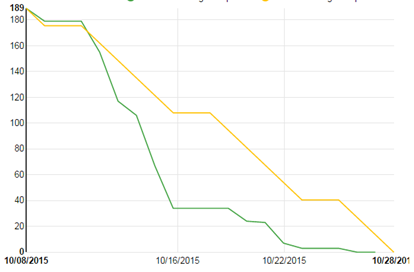 within our platform within our Scrum team.
For the former approach, I asked each team member that has presented a Learn and Be Curious (L&BC) goal to me to back out the time they want to invest from our Sprint capacity. For example, if the Sprint capacity is usually 220 hours, and two team members are working on a L&BC goal, our capacity is adjusted to 180 hours to provide both engineers 20 hours across 3 weeks to deliver on their personal L&BC goal.
Early on in the Sprint, I noticed that the burn down was trending nicely (we use the burn down as just one of many information radiators on my team). Then I noticed a sharp dip over about 3 days which is not unusual for this team. About a week in, the sharp dip continued so I asked about the burn down at the end of stand up one morning wondering if they needed more work.
On the contrary! The team had self organized to ensure that they had enough time to work on their L&BC goals without having to be randomized between the core Sprint work and the L&BC work. This way, with the Sprint goals well in sight, they could take much of the last week to work on their L&BC without having to task switch between Sprint work and their personal goal work.
When you have the privilege of leading a high performing team, they will self organize to optimize for the most efficient and friction free outcome.
As a leader, it is important that you have the right metrics and data to ensure that you can audit as needed and ask the right questions. But, most importantly, stay out of their way and let them do what they do best.
Sunday, October 25, 2015
The great folks at Nightscout recently published an update to members/subscribers regarding another breaking Mongolabs change. 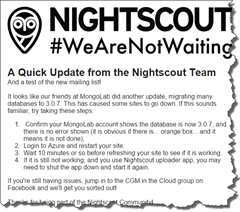
In a nutshell, recently, Mongolabs updated their MongoDb database to 3.0.7 which appears to be breaking Nightscout and other clients. My guess is that the fix recommended below ensures any pooled and or unauthenticated connections are released, but I haven’t dug deeper to verify.
If you host your Nightscout Website or Bridge on Heroku, keep reading. My intent in this post is to provide a simple way to restart your app without a lot of technical experience required.
If you are hosting the Nightscout Website or Nightscout Bridge on Heroku, you may stumble to figure out how to ‘restart’ the apps, called “Dynamos” (Step 2 on the right). On Microsoft Azure, it’s very simple to restart an Azure Website but Heroku is a bit more subtle.
A few Google searches reveals the heroku restart command line command, but I doubt most NightScout users are going to take the time to download client SDKs, set up Procfiles, etc. and there does not appear to be any documented way to restart a Dyno from the UI/Dashboard.
Poking around a bit, I found the solution is simple:
1. Click on your Dyno (i.e. this will be the app that is either running your Website or Bridge) to bring up the setting page.
2. On the settings page, Click Edit:
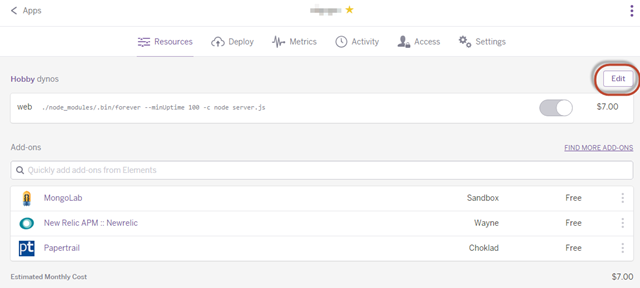
3. Once in “Edit” mode, you can switch your Dyano off
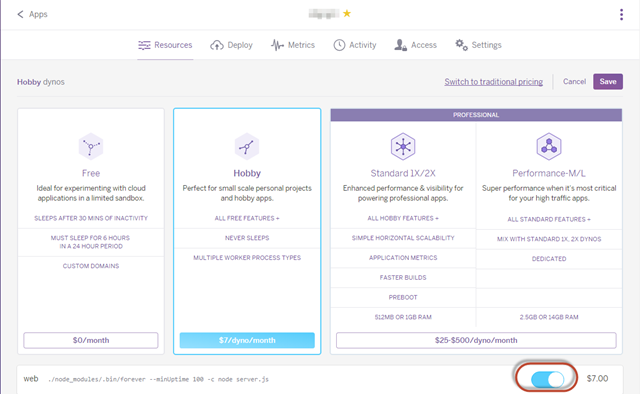
4. Be sure to hit Save.
5. Repeat Steps 2 and 3, turn the Dyno back on and hit Save.
Note, I did not have to wait 10 minutes for the fix to take effect. You should be able to refresh your website and it should work.
Hope this helps anyone needing to “restart” a Dyno. If it doesn’t work for you, please drop me an email or hit me up on twitter: @rickggaribay
Monday, March 23, 2015
In 1999, I started my career in software development as kind of an accident. Just out of the Army I was hired by First USA Bank (now JP Morgan Chase) to answer phones for their burgeoning customer service center in Austin, TX. The job paid $10.40 an hour, providing additional income to help cover what little the very generous GI Bill didn’t. Together, it was enough to cover full tuition at St. Edward’s University, rent for a one bedroom apartment and live and eat pretty comfortably for being 24.
About 3 months into my job as a Customer Service Representative, I was selected for a “special project”. These typically ran from anywhere from a couple of weeks to a couple months and were an opportunity to get off the phones for a bit and learn the business while doing fairly clerical work for busy managers. In this case, I had lucked out with an opportunity to work for the Operations Manager for the Austin site who had the then very progressive idea of putting his Ops manual in HTML so that his team could easily refer to it without having to flip through a big three ring binder. Through this process, I taught myself basic HTML and CSS and got really good with MS Word and Power Point. Thanks to him and a little bit of chutzpah on my part, I never answered another customer service call again.
This project ignited a passion for writing code that JP Morgan Chase would continue to very generously fulfill for over four years. I learned VBA, Access Forms and graduated to Classic ASP (thank you Scott Mitchell) and SQL Server 7. I was doing BI (dynamic, hand coded reports using ASP 3.0) before the term existed for the credit card operations business which at the time was pretty innovative. So much so, that we had teams from American Express and Bank of America visit our team to learn how we were doing it. I also dabbled in DNA and COM+ while at the bank but thankfully realized that .NET was the path forward and got pretty good at full stack web development with ASP.NET. I built one of the company’s first intranet portals for the auto and home lending operations group on ASP.NET 1.1.
From there, I moved on to DriveTime where I learned enterprise mobility, EAI and SOA working on a major fleet management system we built on Windows Mobile 5, .NET 2.0 and BizTalk Server from the ground up. I learned enough to become dangerous with BizTalk Sever 2004 from Todd Sussman (who we hired as a BizTalk consultant-Todd had just moved from Israel to join Neudesic) and Brian Loesgen’s “BizTalk Unleashed” book (pretty much the BizTalk bible at the time, maybe still). Within no time, my team and I were doing messaging and eventing work and designing orchestrations that talked to RPG programs running on the IBM iSeries as well as consuming C++ modules exposed as Web Services in a fleet management package called Maximus. I would soon scrap all of the ASMX and .NET Remoting services we’d written in favor of Indigo/WCF. Thanks to Juval Lowy’s incomparable books on the subject and patient mentoring, I got pretty good with WCF forming a bias for WCF and WF for messaging and workflow that I’d pretty much keep thereafter.
By 2006 I was very deep in integration technologies and was regularly speaking at local user groups and code camps. Shortly after joining ESS (now IHS) as an Architect and PM later that year, I published my first paid article focused on EAI with BizTalk. I further honed my WCF skills by implementing automation and workflow features for ESS’ Essential Suite product. The company had an amazing work-life balance which allowed me to get more involved in the community but consequently resulted in some restlessness that invariably led me to follow Todd Sussman to Neudesic where I joined the Connected Systems Development (CSD) practice (I would end up running this practice as General Manager for over 3 years). Shortly after joining the company, I was awarded my first Microsoft MVP award in October 2007 as a Connected Systems Developer thanks to Tim Heuer who was kind enough to nominate me, Rod Paddock for giving me the visibility that being published provides, and ESS which had provided me with the flexibility to build some community capital over those 10 months. That was 8 years ago and I’ve been fortunate to somehow get renewed every year since.
This internal and external alignment of focus has been highly synergistic to my career and Neudesic has provided a level of opportunity and exposure I would never have otherwise had. During my nearly eight years with the firm I’ve had the opportunity to work very closely with Microsoft and dozens and dozens of clients across multiple industries both as an in-the-trenches consultant as well as a strategic advisor. I’ve published several articles and whitepapers, published my first book, spoken at various events and conferences across the country and, most notably delivered numerous custom development and integration projects largely in the intelligent transportation and hospitality and gaming space.
Some of the external work I’m most proud of includes delivering dramatic improvements to processing time for enrollments on PrePass.com from an average of 7 to 10 days to under 48 hours; reducing the costs of operating perimeter security for commercial trucking companies by leveraging in-vehicle RFID technology to automate gate operation; providing Angelinos with an automated parking solution that simplifies their daily work commute by helping to determine if they should drive or take public transportation; enabling marketing, entertainment and Food & Beverage leaders to promote on-property amenities including events, retail and dining offers directly to players on slot machines resulting in The Cosmopolitan Hotel and Casino making history as the first property to open with the ability to deliver real-time offers and fulfillment to players during a live gaming session; and most recently helping Turning Stone Resort & Casino become smarter than ever when it comes to understanding their guest’s preferences and proactively anticipating their guest needs.
Internally, I had the opportunity to implement a number of processes, frameworks and solutions I’m very proud of as well (I think its Martin Fowler that once said that focusing internally can sometimes be as or more rewarding than external work). I implemented the Engineering Excellence program which provides standards and guidance for addressing the development aspects of an agile team like continuous integration and delivery and rolled out 3 releases of content and guidance serving as Editor in Chief. I also led the creation of standardized technical marketing enablement assets as Group Program Manager leading a team of highly capable Capability PMs who delivered strategy maps, decks and other content. I owned and led the GTM for one of the first Neudesic solutions, Real Time Experience (RTX) which culminates almost 7 years of knowledge, experience, IP and assets delivering real-time messaging solutions for the hospitality and gaming industry and have taken a handful of customers live. This year, I incubated the Internet of Things (IoT) practice, working very closely with our internal teams and super smart people at Microsoft like Clemens Vasters and Dan Rasanova on the engineering side of things as well as key folks in the Microsoft business and field teams to become a key go-to partner for Microsoft IoT.
This is really just a small glimpse of the amazing time I’ve had at Neudesic. A big part of what makes Neudesic an amazing company is the people. Everyone always says that working at Neudesic exposes you to some of the smartest people in the industry and it is absolutely true. I’ve learned so much during my time at this great company but the accomplishment I treasure the most is the relationships and friendships I’ve made through the years, a list too long to put here but you all know who you are. That said, I could not end this post without thanking Mickey Williams, my boss, mentor and friend who championed me early on and made my time at Neudesic that much more impactful, fun and rewarding.
So as you can probably sense, while I never worked directly for Microsoft, working for Neudesic is about as close as you can get… I’ve served the Microsoft field team as a Virtual Technical Solutions Specialist for most of my Neudesic career and in addition to being an MVP have been an advisor to Microsoft engineering and business groups as a member of various advisory groups along with serving as a member of the Microsoft Partner Advisory Council for the last three years.
Clearly, this is a career that Microsoft built. Microsoft has been very, very good to me for the last 14+ years. But change is inevitable.
A New Chapter
There are a number of things that attracted me to Amazon.
In addition to being a very happy, satisfied Amazon.com customer for over a decade, for a distributed systems guy, a company who’s CEO effectively mandates SOA as the lingua franca for all teams internally is pretty cool. In addition, in doing a ton of research and speaking with good friends that work at Amazon, Amazon is very big on ownership and entrepreneurism, is highly customer obsessed, big on accountability, autonomy and greatly encourages big ideas to name just a few of their leadership principles that really resonate with me.
So while joining a brand I respect and use every day, seems to have values strongly aligned with my own while providing for great engineering challenges made it easier, one thing really sealed it for me…
I’ve had the opportunity to join engineering teams for other big companies like Microsoft in the past, but one thing that always got in the way was relocation. Sure, there are field roles out there but I’ve never been one to be motivated by a sales influence quota/scorecard.
I like Seattle, but almost ten years ago my wife and I decided that Phoenix is home until the kids are out of high school and that’s a promise not to be broken. So, Amazon’s distributed engineering team model is a highly differentiating factor. In fact, other than planning meetings in Seattle and some potential trips to Detroit (another Amazon dev center), I will be home more than I’ve been in nearly a decade (though admittedly losing A-List and Silver status and my wife’s SWA companion pass will be tough to give up!).
In terms of role, I will be working in the Marketplace business which has a dev center right here in Tempe (it’s actually less than a mile from my old office). The Marketplace business is a key part of Amazon.com’s price, availability and selection strategy and is one of the largest revenue producers in the company. I will be leading a team of Software Development Engineers (SDEs) focused on the distributed platform that powers the 3rd party seller experience on Amazon.com. This includes the experience you or I might have adding a widget for sale in Seller Central to big sellers uploading hundreds and thousands of transactions. And though it might be amusing to see how a Microsoft nerd adjusts to Linux, Java, Oracle and AWS, I am super excited to be doing something completely new and learning a brand new business and technical domain at a scale that I’ve likely never worked on before!
As for community, I fully intend to continue to blog, write and speak. I may change up the technology focus a bit (and my cadence may slow as I ramp up at Amazon) but my passion for community, software development, teaching and mentoring will always remain.
Monday, January 19, 2015
Some of you may be aware that my 9 year old daughter was diagnosed with Type 1 Diabetes last year. To say that the time since has been an emotional roller coaster would be a gross understatement but thankfully she is doing great and adjusting really well.
While huge strides have been made in the treatment of T1D, one of the main things that the disease steals from you and your family is time and peace of mind. Finger pricks, injections, treating lows all occupy time away from living a regular life. What most people don't know is that with type 1, going low (i.e. blood sugar dropping) is far more dangerous that being high.
Type 1 Diabetes is a Family Disease
When you have type 1 diabetes, your body doesn't produce insulin so you have one choice: Add insulin via injections or die. Pretty much that simple.
The irony is that while we can't live without insulin due to its critical role of delivering energy (sugar) to our cells for normal brain and bodily functions, too much insulin can also kill you because it is incredibly efficient at delivering the sugar in your bloodstream to hungry cells (or fat storage if they’re well topped off). Without sugar (glucose to precise) your body, starting with your brain, literally shuts down. But too much sugar in the blood stream (which someone with T1D will always have without supplemental insulin) causes damage to organs and over time can lead to impaired eyesight, nerve damage and a host of other issues. So the key is to maintain a balance of external sugars (carbs) and insulin since your body (specifically, your pancreas) is unable to do so.
The problem is that we make crummy substitutes for doing the important work of the pancreas. The result is life that feels like your constantly walking a tightrope where one miscalculation in the amount of insulin administered could quickly turn into an emergency situation. Most families are very good at detecting the symptoms of hypoglycemia. Irritability, perspiration, nervous shakes and confusion are common indicators that someone with T1D is “going low” and so far my daughter has been really good about detecting these symptoms by staying in tune with her body and her feelings and being super responsible about her tests. We are extraordinarily fortunate to have an amazing care team including teachers, nurses and faculty at school, dance instructors, piano teachers and relatives who have learned the symptoms and can act in the event my daughter doesn’t realize she’s going low (sudden confusion is a common symptom). Maintaining this balance is especially frightening at night during sleep because it is possible to go low without recognizing the symptoms (the person is peacefully sleeping) and the family and care team are also asleep. Far too many children, young adults and grow ups have sadly died in their sleep because they didn’t realize they were going low and before they could medicate- as simple as drinking a juice box or eating a snack size pack of Skittles- its too late.
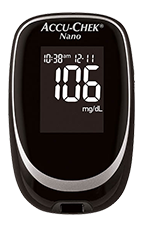 The cure for parents of children with T1D is to set the alarm clock for 2 or 3 AM (a new routine in my home) and do a test to ensure that if she is low we can get her back up. 9.9 times out of 10 she is fine, right within range but we have had a couple of near lows. This is especially important on high exercise days like dance or running club because the body consumes more sugar (energy) during times of peak activity that can sometimes gradually bring sugar surplus down. In the event that someone with T1D is very high in the middle of the night (again, despite the utmost care, unlike the perfect pancreas and liver team, we can and will make mistakes in calculations) he or she must take insulin to bring the blood sugar down to non-damaging normal range, and that means a pretty awful, sleepless night with more finger pricks.
As you can imagine, this is not fun for the someone living with T1D or their parents or caretakers, but the choice of giving up a full night’s sleep and bothering your little one with yet another finger prick is an easy trade off when the stakes are this high.
Fortunately, about twice a decade new innovation triumphs over the very high FDA bar to deliver new technology that makes living with Type 1 Diabetes a little easier. Examples include the advent of insulin pens with nano-needles over larger, clunky and more painful injections, home glucose testing kits over relying on highly inaccurate urine tests, or worse monthly visits to your doctor for lab work and insulin pumps that administer micro doses of  insulin and do a far better job of playing pancreas than we humans can.
Continuous Glucose (Diabetes Nerdspeak for Blood Sugar) Monitoring
One such recent breakthrough has been in bringing continuous glucose monitoring (CGM) to the market. CGMs work by inserting a small needle exposed from a sensor about the size of a postage stamp (but much thicker) into the subcutaneous tissue and reading the current blood sugar in the blood stream at a given interval. The sensor then transmits the reading to a receiver about the size of a cell phone for display. While finger pricks are still required from time to time for calibration purposes, a CGM is a huge improvement to the quality of life of someone living with T1D and their care team because it not only provides the blood sugar information much more frequently, but given the frequency can also report on data trend. This is incredibly helpful in knowing if blood sugar is flat (good), rising (not good) or falling (really not good). For example, if a person with T1D is about to play in a tennis match and is within range but trending down, this data is enough to provide the insight to eat an apple or other healthy snack before the game. Likewise if after a celebratory pizza party blood sugar is still continuing to rise after administering X units of insulin, a corrective dose can be administered without missing it and going high for an afternoon.
So while CGMs are an amazing advancement in the treatment of T1D, alone they are not a panacea because while you still benefit from much more information much more frequently you still have to be awake to benefit from the data. Some devices (such as the Dexcom G4 Platinum) provide the ability to set hypo (low) and hyper (high) alarms which is a great step forward but snoozing through an alarm clock is something we’ve all experienced so still a risk. In addition, the information is isolated within the device and visible only to someone near the device.
CGM in the Cloud (The Nighscout Project)
This is where the work of amazing community that is the Nightscout Project comes in. The project is comprised of a 100% volunteer group of DIYers, all with day jobs who together are learning and sharing new ways to expose this critical data in a way that increases visibility and awareness for the entire care team. You can learn more about this great project here but in a nutshell, the project provides a reference architecture, guidance and code to stream this precious telemetry up to the Microsoft Azure cloud. The idea is that once the data is unshackled from the stand alone device, it can be shared openly. Imagine the peace of mind this brings to a parent who is wondering if his or her child got enough carbs before recess and with one click see a dashboard with live updates 5 minutes apart.
The dashboard running on Azure Websites.
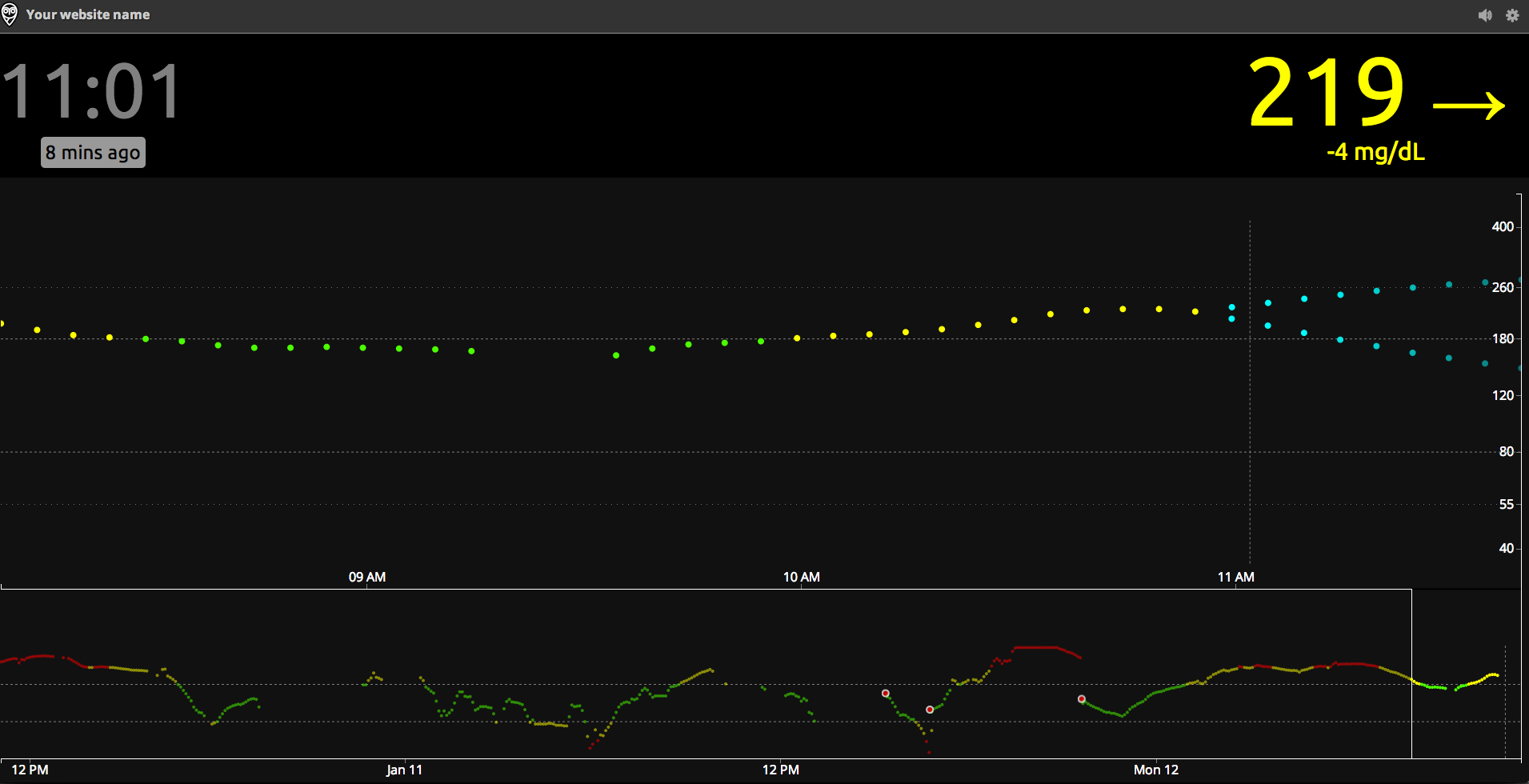
Microsoft has committed to provide 1,500 families with six-month “Azure passes” to offset the cost of NightScout - See more at: http://diatribe.org/tech-giant-microsoft-teams-jdrf-champion-cloud-based-solutions-diabetes#sthash.xVBOG9g2.dpuf
That’s game changing in and of itself. But that’s really only the beginning. Once the data is landing on Azure, you are free to do with it what you want. This is where leveraging APIs for email or SMS come in. How nice would it be to get automatic updates anytime your child’s blood sugar is trending up or down, or be able to display the current blood sugar on a smart watch giving your child back just a little bit of dignity and freedom to just live life a little more care free like any kid should be able to?

Walking the T1D Tightrope: T1D in the Cloud
On Thursday, January 22nd, The JDRF Orange County Chapter, The Nightscout Project and Microsoft are teaming up for a 4 hour educational event to explore the latest state of the art of managing diabetes on the cloud followed by a hand-on workshop to help several families get up and running with the Nightscout kit. You can learn more and or register about the event here.
I will be attending the event to learn all I can and provide any technical support I can offer in the workshop though this is the first time I’ll be seeing the build myself. My goal is bring this event to Phoenix this year and I’m currently in conversations with JDRF, Microsoft and Nightscout leadership so stay tuned (I also got a soft commitment for the keynote from a highly prominent A-Lister that I promise any nerd will won’t want to miss wither you’ve been touched by T1D or not). I’d like to thank Ali Mazaheri and Katie Ryckman at Microsoft, Michelle Popoff at JDRF and Wes Ton of the Nightscout project for brining this event to Orange County and allowing me to participate. Last but not least, I’d like to thank Scott Hanselman for connecting me with the Nightscout project and teaching me that true community extends far beyond a platform or technology.
More to Come…
As you can tell, I’m pretty passionate about this project and you’ll be hearing from me a lot more (as well as hopefully seeing some commits from me on Github).
We didn’t ask for Type 1 Diabetes, and trust me, I’d give anything for God to take it back but I feel uniquely blessed to have the opportunity to be a part of this. As a father of the most amazing daughter in the world (who just happens to have T1D), being a Microsoft Azure MVP coupled with my interest in IoT gives me an amazing opportunity to apply my talents and interests for a greater good. Hopefully I can make a small difference.
Tuesday, November 11, 2014
Long overdue, here are my slides from VS Live DC last month.
I plan on getting my demos up on Gitbub and will update this post when I do.
Secure, federated identity. A durable, reliable and scalable backend. Scalable messaging fabrics that unlock assets both in the cloud and behind the firewall. All of these are table stakes when delivering modern mobile enterprise applications. Whether you are building responsive web apps for devices or targeting iOS, Android, Windows Phone or Windows Store apps, as a mobile developer, you must focus on delivering a beautiful and functional user experience if you want your apps to be adopted. What if you could have all of this plus the power or Visual Studio 2013 and Windows Azure? Well, now you can! Instead of reinventing the wheel each and every time you need to target a new device platform, learn how Visual Studio 2013 and Xamarin allow you to target iOS, Android and Windows devices while promoting reuse of code assets across platforms. And when you're done with the front–end work and are ready to wire up your mobile app, come see how Microsoft Azure Mobile Services provides a simplified stack that tackles security, durability, reliability and modern messaging all with just a few lines of code. In this session, you'll learn how you can harness the power of Visual Studio 2013 with the flexibility of Xamarin and the power of Microsoft Azure Mobile Services to tackle all of your cross platform and back end chores quickly and easily so you can focus on what your users really care about.
Microsoft Azure BizTalk Services is a new breed of PaaS middleware capabilities (iPaaS) for building a new generation of applications and solutions that extend beyond the traditional business, network and security boundaries of the enterprise. More than just messaging, MABS delivers robust routing, transformation, mediation and enrichment capabilities to your hybrid applications enabling a whole new generation of connectivity across the enterprise, devices and clouds. In this session, we'll wire up a responsive mobile web app to a back-end application residing behind the firewall using a low friction, RESTful approach. We'll cover how to map from your application domain to other system, application APIs and options for pushing data to multiple destinations including Microsoft Azure, Web Services, and FTP. You will learn how MABS can take the pain out of sharing information behind the firewall, support many of the rich mapping capabilities you've come to expect from BizTalk making integration with 3rd party service providers and assets behind the firewall a breeze.
I had the privilege of presenting at Azure Conf in Channel9 studios a couple of weeks ago. This is the second time I’ve had the pleasure to present at AzureConf (see my 2012 talk on WebSockets here:http://channel9.msdn.com/events/windowsazure/AzureConf2012/A01)
I covered a ton of content in just over 60 minutes including a command demo with a Fez Spider board and Azure Service Bus and a sneak peak of Azure Device Gateway (code-name Reykjavik) deployment on my Azure subscription to demonstrate deployment, telemetry, inquires and commands with a software emulator.
Direct Link to Channel9 http://bit.ly/1DBVLxk